
AnchorAI for SharePoint
Private AI for documents you already keep in SharePoint. People chat, summarize, compare, and generate files without sending content to a public cloud.
Overview
AnchorAI sits next to your SharePoint farm. It reads libraries you choose, builds a searchable index on a server you control, and answers from that index using local AI models on your network.
Users stay in SharePoint. They do not learn a new portal. Answers point back to the original files.
Features
- Chat — Ask questions about indexed libraries, the current library, or files you have selected. Answers include source references.
- Summarize — Select one document in a library and get a structured summary without opening the file.
- Compare — Select several documents and see overlaps, differences, and key points side by side.
- Generate documents — Describe what you need and AnchorAI drafts a real Word, PowerPoint, or Excel file grounded in the indexed libraries, with citations back to the sources. Download it or save it straight back to the current library.
- Permission-aware answers — People only see content they can already open in SharePoint. Access is checked when they ask, not from a stale copy of permissions.
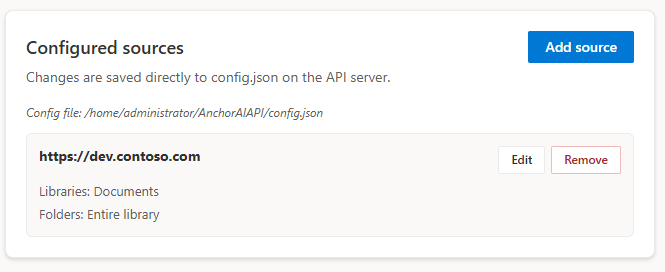
- Admin for sources and ingest — Choose sites and libraries, run indexing, and watch progress from a small admin page on the API server.
Chat searches the index for relevant passages. Summarize and compare work from the selected files themselves, so they stay balanced across long documents.
How it fits together
Three parts work together:
- SharePoint add-in — web part and library commands inside the farm.
- AnchorAI API — indexes documents and answers questions.
- Local AI — models you host. Nothing is sent to Microsoft, OpenAI, or other cloud AI APIs.
Chat and embeddings are separate services. You can place the large chat model on a GPU machine and keep indexing next to the API.
In SharePoint
After the add-in is installed on a site, people use AnchorAI from a modern page or from the document library command bar.
- No files selected — chat about the current library.
- One or more files selected — chat scoped to those files, or summarize a single file.
- Several files selected — compare them.
- Any time — Generate document drafts a docx, pptx, or xlsx from the current library or the selected files.
Each site gets a small config file in Site Assets with the API address and a key for everyday use. Language can be English or Swedish.
The page web part can search everything that has been indexed, not only the library you are looking at. It also has a Generate tab with the same document-generation capabilities.
Document generation
Instead of only answering in chat, AnchorAI can produce an actual Office document that is grounded in the material you have already indexed:
- Word (docx) — reports, onboarding packs, process documentation, tender drafts.
- PowerPoint (pptx) — steering-committee and kick-off decks, up to 25 slides.
- Excel (xlsx) — structured extractions such as risk trackers, up to 500 rows per sheet.
How a generation runs:
- You describe the document — audience, length, structure — in plain language.
- AnchorAI plans an outline and searches the chosen library or selected files for the material to build on. Only content the user can already open in SharePoint is used.
- Each section is written in its own step with numbered references to the sources it drew from.
- The file is rendered with the selected theme and shown to you.
The generation takes place in the background — typically one to eight minutes — and the panel shows a live preview that fills in section by section, a checklist of the sections, and a cancel button at all times.
Citations. The finished document carries numbered inline references and a Sources section built from the documents that actually contributed, so every statement can be traced back to its origin.
Document types. When the dialog is opened from a library, a Document type selector lists the library's SharePoint content types. Picking one (for example a status-report content type) applies its standard structure and look, so generated files match what the organization already maintains in SharePoint.
Save to SharePoint. A finished file can be stored directly in the library you are working in:
- Saved with the calling user's own SharePoint permissions.
- Never overwrites an existing file — a name collision produces a timestamped copy, so SharePoint versioning stays clean.
- A file belongs to the person who started the job; other users cannot download it.
Generated files are not re-indexed automatically. Re-ingesting a generated document is an explicit admin action, so synthetic content never silently becomes a source for future answers.
Getting started
Rollout is four steps:
- Run the AnchorAI API on a server you control, pointed at your local AI.
- Deploy the SharePoint package and add it to the sites that need it.
- Choose libraries in the admin UI and run ingest.
- Add the chat web part and use summarize or compare from the library toolbar.
Ingest can run incrementally. Only files that indexed successfully are available for chat, summarize, and compare.
Privacy & access
- Documents, questions, and embeddings stay on your infrastructure.
- Everyday use and administration use separate keys.
- Ingest uses a service account you choose. User questions are filtered by that user’s SharePoint rights.
- The system can run without outbound internet after the first setup.
Built for SharePoint Server Subscription Edition and SharePoint Server 2019 (modern document libraries).
© 2026 Goda Vindar AB · Questions: anchorai@godavindar.se